Kirjoittanut John Nakulski, Perustajajäsen Konnekt, August 2026:
Virta Konnekt Captioning Videophone sound directly to your hearing aids or cochlear implants for clearer, private listening.
Direct streaming can:
- Reduce the impact of background and room noise.
- Improve sound quality and voice intelligibility.
- Let you enjoy calls without holding a handset to your ear.
Tämä sivu selittää:
- The usual ways to listen oman Konnekt.
- The sound connections available on your Konnekt.
- Three ways to stream sound directly to hearing aids or implants.

Our three suggested streaming methods are:
- Your hearing-device manufacturer’s TV-lähetintä — usually the easiest method.
- Bluetooth Auracast — a future-proof solution that works with multiple devices.
- Älypuhelimesi — a low-cost alternative that needs a special cable and set-up.
Click the links above to jump directly to your area of interest.
How do people normally listen to Konnekt?
Tietoja 98%: sta Konnekt customers use one of two listening methods:
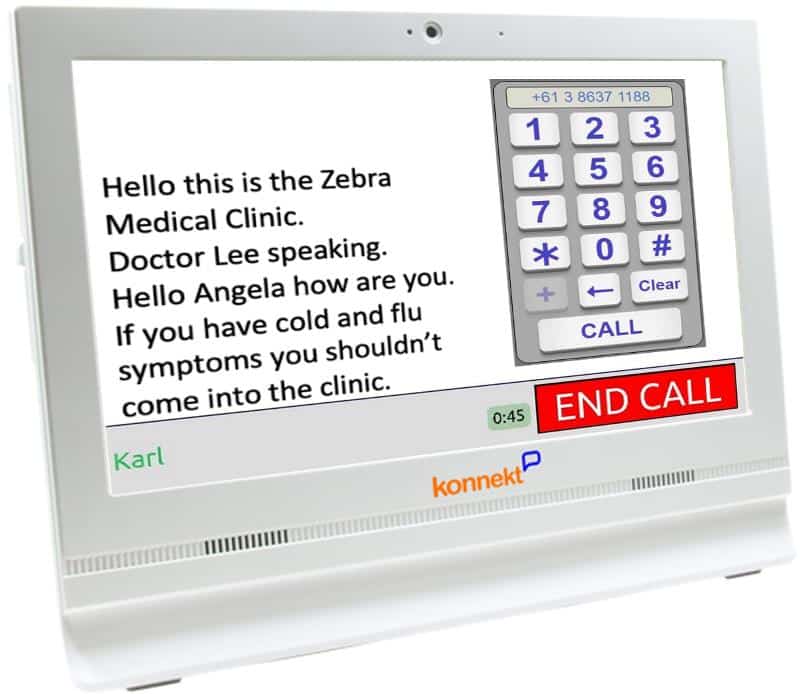
Kädet vapaana
Many customers simply use the built-in microphone and either the internal speakers or our powered external speaker.
- Binaural sound — listen with both ears.
- Nothing to pick up or hold — ideal for people with limited mobility or dexterity.
- Ideal for long conversations.
USB handset
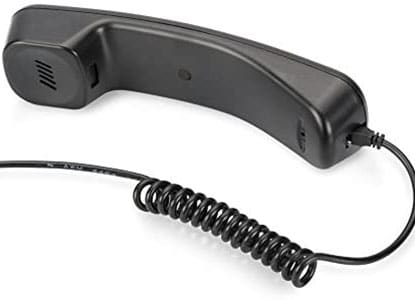
Our optional USB no-cradle handset provides a more traditional telephone experience.
- Monaural sound.
- Improved voice clarity.
- Greater privacy.
- No cradle or hookswitch — no risk of leaving the phone off-hook.
Sound connections available on Konnekt
Konnekt supports three types of audio connection:
3.5 mm audio socket
The 3.5 mm sound socket can connect to powered speakers for louder ringing and voice, as well as to microphones, audio transmitters and other sound devices.
When the 3.5 mm socket is in use for sound output, the internal speakers are disabled.

3.5 mm Stereo Y-Splitter
Konnekt can supply a simple splitter cable, used to listen to sound on two speakers. This allows the same sound to go to:
- Konnekt’s external speaker with volume control; and
- Your hearing-aid or implant streaming equipment.
If supplying yourself, take care not to buy either a stereo-to-mono left and right (red and black) splitter cable, or a headset to mic and speaker (pink and green) cable.
USB
Konnekt has four USB-A sockets. They can support USB audio devices including:
- Our optional USB no-cradle handset.
- USB headsets, headphones, speakers and microphones.
- Compatible USB sound adapters and Bluetooth audio transmitters.
The USB sockets can also conveniently provide power to suitable accessories, such as our powered external speaker or some hearing-device transmitters.
Bluetooth:
Konnekt tukee Bluetooth Classic for compatible headphones and speakers.
Etsitkö Bluetooth LE -ääni, Valmistettu iPhonelle, Asha or Auracast? Keep reading. We explain each of these streaming technologies and how to use them.
For Bluetooth Classic headsets, Konnekt sends sound to the headset speakers but does not use the headset’s microphone or any telephony controls. You speak into either:
- Konnekt built-in microphone, hands-free; or
- The microphone in the Konnekt USB handset.
Want to use your own sound device?
Kertoa Konnekt Support if you want to use your own USB or Bluetooth sound device. We can remotely configure or enable suitable devices, avoiding the need for you to navigate complicated sound settings yourself.
Stream directly to hearing aids or implants
Direct streaming sends the caller’s voice directly to your hearing aids or cochlear implants. This can be particularly helpful when:
- Background noise makes speech difficult to understand.
- You need sound delivered to two hearing devices.
- You want clearer sound without increasing room volume.
- Other people are nearby and you want greater privacy.
Using the external speaker while you connect
For the three streaming methods below, we recommend using our 3.5 mm Y-splitter ja powered external speaker.
When you answer a call:
- Ringing and the caller’s voice are initially heard through the external speaker.
- Start receiving the streamed sound through your hearing aids or implants.
- Once you hear the streamed sound, turn down the external speaker’s own volume control.
- After the call, turn the speaker volume back up, ready for the next call.
This means you can answer calls immediately, without missing the start of the conversation while connecting your hearing devices.
Show this page to your audiologist
Your audiologist can help select the best method for your particular hearing devices and configure them so that switching to streamed sound is as easy as possible. Depending on your hearing aids or implants, starting a stream may require either:
- Double-tapping or pressing a button on a hearing aid.
- Pressing a button on a small remote control.
- Selecting the stream using a Smartphone app.
- Nothing at all. Some hearing devices can switch automatically when streamed sound becomes available.
Funding may be available
Eligible assistive technology can often be funded through hallituksen ohjelmia such as aged-care or disability funding.
Three ways to connect
Here are 3 ways you can send Konnekt sound to your hearing aids / implants:
- Hearing-device manufacturer’s TV streamer. Easiest. Recommended.
- Auracast transmitter. Future-proof. Sends to multiple devices or people.
- Existing Smartphone. Lowest cost. Requires special cable and set-up.
1. Hearing-device TV transmitter — easiest
This is our first choice for most people.
Hearing-aid and cochlear-implant manufacturers offer TV streaming transmitters designed specifically for their hearing devices. Despite the name, a “TV transmitter” can accept sound from other equipment — including your Konnekt.
To maximize the battery life of your hearing aids, most TV transmitters use either Bluetooth Low Energy Audio (BT LEA), Bluetooth Low Energy (BT LE) with a proprietary audio profile, or a completely proprietary RF protocol. Very few use Bluetooth Classic.
edut
- Usually the easiest solution to use.
- Usually the easiest solution for your audiologist to configure.
- Designed specifically for your hearing aids or implants.
- Avoids having to use a Smartphone app for every call.
Haitat
- Usually works only with, or best with, compatible hearing devices from that manufacturer.
- Typically costs around AU $250–$600 (US $190–$450).
- If you later change to another hearing-aid brand, you may need a different transmitter.
Mitä ostaa
Ask your audiologist for the TV streaming transmitter made for your hearing aids or implants. Using the hearing-device manufacturer’s own transmitter generally provides the best compatibility and easiest operation.

Example: Starkey StarLink Edge TV Streamer.
Use with the Omega AI and Edge AI hearing aids.
Streaming can be set up to start:
- Automatically when streaming starts (available for Omega AI).
- With a hearing-aid button or double-tap.
- Using the optional “StarLink Remote Control 2.0” by pressing the Star button.
The remote control can be particularly useful for someone who finds pressing or double-tapping a hearing aid difficult.
Connecting it to Konnekt
Kysyä Konnekt toimittamaan:
- A 3.5 mm stereo Y-splitter cable, Ja
- Yhtiömme powered external speaker.
Connect one side of the splitter to the external speaker and the other to the TV transmitter.
Depending on the transmitter’s audio input connectors and supplied cables, you may also need:
- A 3.5 mm stereo male-to-male audio cable; and/or
- A 3.5 mm stereo to left-and-right RCA adapter cable.
Konnekt can help you select the right cable.
Most TV transmitters require USB power. One of Konnekt’s USB sockets can provide this power, reducing the need for power outlets. If powering the transmitter from the Konnekt introduces a faint humming noise, ask for our no-cost 3.5 mm inline noise filter (line isolator).
Ask your audiologist to help
Ask your audiologist to:
- Pair the transmitter with your hearing aids or implants.
- Configure an easy button press or double-tap to select streaming.
- Configure automatic switching, if your hearing devices support it.
- Set up a compatible remote control if this would make operation easier.
2. Bluetooth Auracast — universal and future-proof
Auracast is our second choice, particularly for people with newer hearing aids or implants.
Auracast is a new technology built on Bluetooth Low Energy Audio that’s used in public venues such as theatres, cinemas and art galleries. A single audio source can stream sound to multiple nearby receivers without needing to pair. A sound stream can either be public or require a Broadcast Code (password).
edut
- Toimii Auracast-compatible hearing devices from different manufacturers, including potentially a hearing aid from one manufacturer and an implant from another at the same time.
- More future-proof if you later change hearing-aid or implant brand.
- Excellent digital wireless sound.
Haitat
- Requires hearing aids or implants that support Auracast.
- You need to use your hearing-device Smartphone app to select the stream.
refore it is better suited to people reasonably comfortable using Smartphone apps. - Compatibility and operation vary between hearing-device models.
Recommended type of Auracast transmitter
varten Konnekt, we generally prefhän klo Auracast transmitter with an analogue audio input rather than an Auracast USB dongle. This allows the Konnekt sound to be split between:
- Konnekt’s powered external speaker; and
- The Auracast transmitter.
The speaker therefore remains available while you select the Auracast stream.
Example 1: Audeara BT-03 Auracast Transmitter
We recommend the BT-03 for its:
- Ease of use, minimalist design and inclusion of cables.
- Automatic operation. Streaming starts when connected.
- It also works with Auracast ear buds and headphones.
It even has a loop audio output, so you can use it with our external speaker without a Y-splitter cable.

The Audeara BT-03 comes without a Broadcast Code (password). If you purchase from Konnekt, we can configure a Broadcast Code so that only your hearing devices will be able to connect (and easily reconnect) to your stream.
Example 2: Starkey StarLink Edge TV Streamer
The Starkey StarLink Edge TV Streamer also supports Auracast. That means it can broadcast to compatible Auracast hearing devices, including devices from other manufacturers.
- It comes configured with a Broadcast Code (printed on the base).
- It starts streaming automatically when it detects sound from the Konnekt (such as ringing or voice).
- Streaming stops after 60 seconds of silence, which might help your hearing device switch back to room mode automatically after the call.
USB Auracast transmitters
USB Auracast transmitters are also available and can cost considerably less. However, we don’t currently recommend these as our first choice for Konnekt.
A USB transmitter becomes a separate Konnekt sound output. With our present configuration, this means the internal or optional external speaker cannot simultaneously play the caller’s voice while you are preparing your hearing aids to receive the stream. You could therefore miss the beginning of the conversation.
The 3.5 mm splitter arrangement avoids this problem.
Connecting an Auracast transmitter
Kysyä Konnekt toimittamaan:
- Our powered external speaker; and
- Our 3.5 mm stereo Y-splitter (not needed if you use the Audeara BT-03).
For the Audeara BT-03, simply connect:
- Konnekt 3.5 mm audio socket to the BT-03 audio input, via Audeara’s included 3.5 mm stereo cable.
- Konnekt powered external speaker to the BT-03 audio output.
For other Auracast transmitters, connect:
- One splitter output to the powered speaker.
- The other splitter output to the Auracast transmitter. Konnekt can help if an adapter cable is required.
Most transmitters can be powered from one of Konnekt’s USB sockets.
Use your hearing device’s Smartphone app to select the Auracast stream. The first time, you may need to enter the stream’s Broadcast Code (password) into your Smartphone app. The Broadcast Code may be printed on the base of the transmitter. Your Smartphone can then remember the stream for subsequent calls.
3. Smartphone streaming, a low-cost alternative
This is our third choice. It requires a special cable and set-up.
A Smartphone can act as the bridge between Konnekt and compatible hearing aids, cochlear implants, earbuds or headphones.
edut
- Low cost if you already have a compatible Smartphone.
- Uses your Smartphone’s existing ability to stream sound to your hearing devices.
- Can potentially work with hearing aids, cochlear implants, Bluetooth earbuds and headphones.

Haitat
- Requires a cable between Konnekt and your Smartphone during calls.
- Requires you to start a suitable ‘monitoring’ Smartphone app.
- Operation depends upon the Smartphone, operating system, app and hearing device.
- It may take more steps to start listening than using a dedicated TV transmitter.

Mitä tarvitset
You’ll need a special cable to adapt from Konnekt’s line-level 3.5 mm analog audio output to a Smartphone USB-C digital audio input. Be careful: Almost all such cables work in the opposite direction, designed to connect your Smartphone to headphones or headsets.
Hanki Sonos Line-In Adapter, an inexpensive 3.5 mm to USB-C audio input adapter. Shop from Amazon: Australia approx $35 / Soumi approx $19. You’ll also need a simple 3.5 mm male-to-male stereo audio cable.
A second option (USA only) is the Cubilux USB-C to RCA audio capture cable, with which you’ll also need a twin RCA female to stereo 3.5 mm male audio cable.
You will also use:
- Konnekt 3.5 mm stereo Y-splitter.
- Konnekt powered external speaker with adjustable volume.
Apple iPhone
Apple uses a custom Bluetooth Low Energy (BLE) protocol known as MFi (short for Made for iPhone, or Made for iOS/iPadOS) to stream audio directly to yhteensopivat laitteet.
Live Listen is an accessibility feature in Apple iPhones. Live Listen can send microphone sound to compatible hearing aids, implants and some Apple/Beats listening devices.
We successfully tested Live Listen with a Konnekt Captioning Videophone, Sonos Line-In Adapter, Apple iPhone or iPad, and Starkey Edge AI hearing aids. The My Starkey hearing-aid app enabled additional control of volume, as well as selection of a custom hearing profile.
We are confident but not certain that this configuration can be used with other iPhone-compatible hearing devices. The cable is low in cost.
Android
Android devices (phones and tablets) can stream audio to compatible hearing aids, implants, earbuds and headphones using either Bluetooth Asha (Audio Streaming for Hearing Aids) or the more recent Bluetooth Low Energy Audio (BT LEA) protocol.
Android has no equivalent to Apple’s Live Listen. Instead, download and install one of these microphone apps from the Android Play app store to send USB-C sound to your hearing device:
- Mic to Speaker by EONSOFT. It’s free but displays small unobtrusive ads.
- Microphone & Voice Amplifier by Jan Augustyniak. To remove the 30-second ads, pay $12.99 for the PRO version.
Ohjeet
- Pair/connect your hearing aids/implants to your Smartphone.
- Connect the 3.5 mm Y-splitter cable from your Konnekt Captioning Videophone to your external speaker and (via a 3.5 mm male-male stereo cable) to your Sonos adapter.
- Connect the Sonos adapter to your Smartphone’s USB-C socket.
- On iOS: Open Live Listen (add it to the Control Centre to reach it fast) and press Start.
- On Android: Open the Mic to Speaker app, select the top-left icon, and press the red microphone icon at the bottom (it will change to blue).
- Konnekt calls will now stream to your hearing aids/implants.
- Turn down your Konnekt external speaker using its volume control.
- Optional: Run your hearing-device Smartphone app, as you normally would, for additional control of volume.
- At the end of the call, remember to turn up your Konnekt external speaker so that you’ll hear the next call ring.
Sound flow
Konnekt → Y-splitter → (External speaker and) Sonos Line-In Adapter → Smartphone USB-C → Live Listen or microphone app → hearing aids / implants
Yhteensopivuus
The Smartphone method was tested by Konnekt using a small number of devices and should not be considered a confirmed solution for every Smartphone or hearing device. Compatibility may depend on:
- Smartphone model.
- iOS or Android operating system version.
- Hearing-aid or implant model and wireless streaming technology.
- The microphone app being used, and its settings.
- USB-C audio-input support.
Charging your Smartphone
The Sonos adapter occupies the Smartphone’s USB-C socket. However, you may wish to charge your Smartphone at the same time. Therefore, we you may wish to use a suitable USB-C data-and-charge adapter tarjota:
- A USB-C data connection for the audio adapter; and
- USB Power Delivery charging for the Smartphone.
This is optional and is mainly useful for people who expect to use streaming for long periods, or dedicate an unused Smartphone for this purpose.
Mikä menetelmä minun pitäisi valita?
For most people, we suggest considering the methods in this order:
1. Start with your hearing-device manufacturer’s TV transmitter
Choose this if ease of use and reliability are most important.
Ask your audiologist whether your hearing aids or implants support a dedicated TV streamer and whether it can be configured for automatic or one-touch operation.
2. Consider Auracast
Choose this if your hearing devices support Auracast and you want a more universal solution that isn’t tied to one hearing-aid manufacturer.
It also enables you to stream to two different devices such as one hearing aid and one implant.
3. Consider Smartphone streaming
Choose this if cost is important, and you are comfortable to utilise your Smartphone or iPad/tablet and perform a longer set-up.
Please note that we have tested this method with a small number of Smartphones and hearing devices.
Ask your audiologist — and ask Konnekt
There are many different hearing aids, cochlear implants and streaming accessories. We recommend showing this page to your audiologist. Your audiologist knows your particular hearing devices and can help determine:
- Which streaming technologies they support.
- Whether a dedicated TV transmitter is available.
- Whether they support Auracast.
- How to make switching to streamed sound as easy as possible.
- Whether automatic streaming or double-tap can be enabled.
Konnekt Support can help with the Konnekt side of the connection, Mukaan lukien:
- Supplying the appropriate splitter, cables and powered speaker.
- Helping select compatible connection equipment.
- Remotely configuring supported USB or Bluetooth devices.
- Working with your audiologist where necessary.
Tavoite on yksinkertainen: Clearer conversations delivered directly to your ears, while making Konnekt calls as easy as possible.
Ota yhteyttä Konnekt for more information, an update, or to ask our help to solve a specific need.