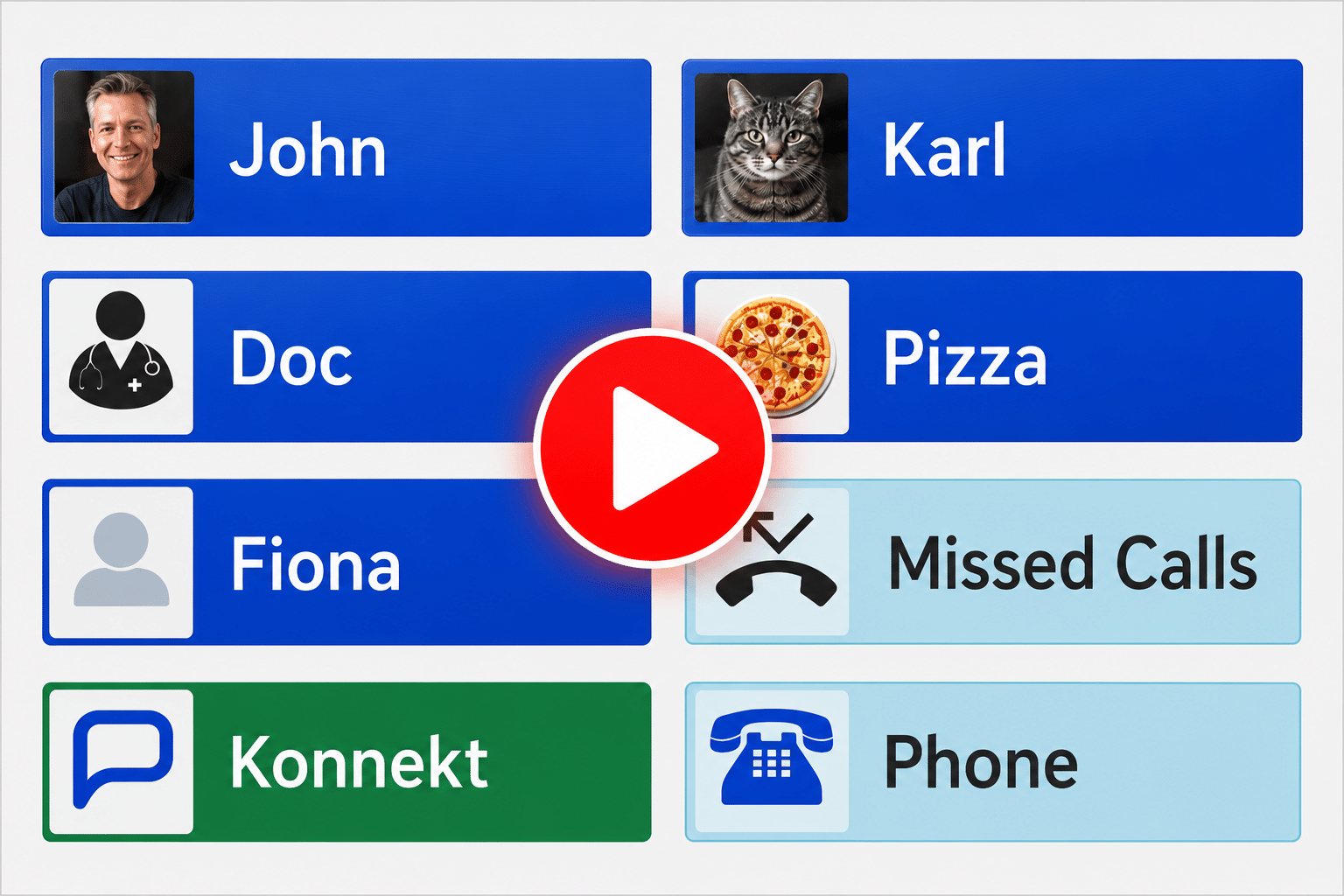
Missed Calls and Captioned Voicemail
Konnekt’s missed calls feature and captioned voicemail help make phone calls safer and simpler, especially for people who are hard of hearing or deaf.
Simply tap an optional Missed Calls button on the home screen to:
- See a list of inbound calls that you missed,
- Play back voice and video messages left for you, or
- View messages as text.
To see how it works, watch this short video.
Incoming call? No need to rush.
If you hear ringing while you are in another room, the Missed Calls feature eliminates the need to rush and risk falling. Take your time. If you miss the call, simply tap the Missed Calls button on the home screen to see who called. You can call back with one touch.
Captioned voicemail for easy understanding.
If your caller leaves you a message, Konnekt provides captions (voice to text). You can play the message audio, read the captions, check whether it is a known trusted contact, and optionally call back with one touch. If you are hard of hearing or deaf, the captioned voice messages are ideal.
A safer way to handle unknown callers.
You can let unknown numbers go unanswered to reduce unwanted calls from telemarketers or scammers. If they leave a message, you can check it and decide whether to call back, ignore it, remove it, or show it to a family member later.
Like to try it?
If you or your family member uses the CareWindow app on their Smartphone:
- If you already have the “Manage” button enabled in the app, enabling Missed Calls only takes a few seconds. Simply follow the instructions below.
- If you don’t see a “Manage” button, scroll to the end of this page for instructions on how to link your CareWindow account to your Konnekt account to enable this button. You can then use the CareWindow app to enable Missed Calls, rearrange buttons on the Konnekt device, add/remove contacts, and more.
If you’re not using the CareWindow Smartphone app, or you’d prefer us to help: Click here to ask our friendly support team to enable the Missed Calls feature for you.
How to turn on Missed Calls using the CareWindow app
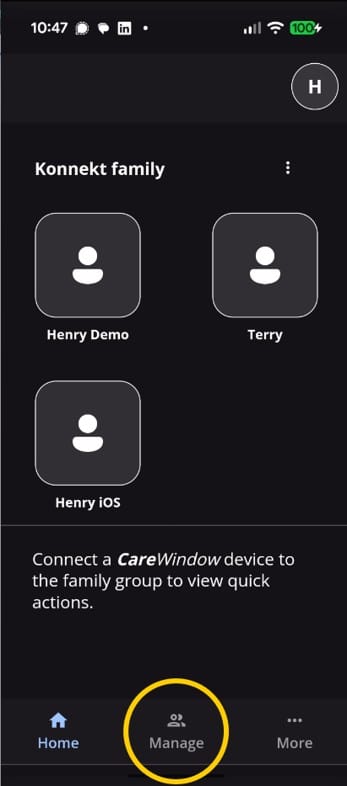
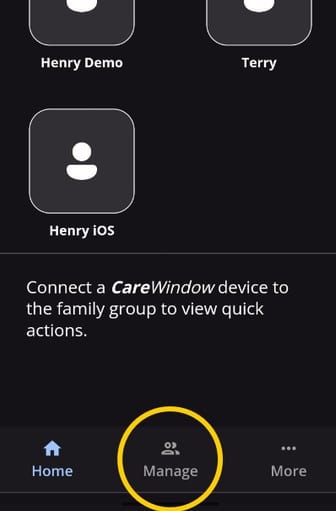
1. Tap “Manage” at the bottom of your CareWindow app, then tap the name of the Konnekt device in the list that you want to configure.
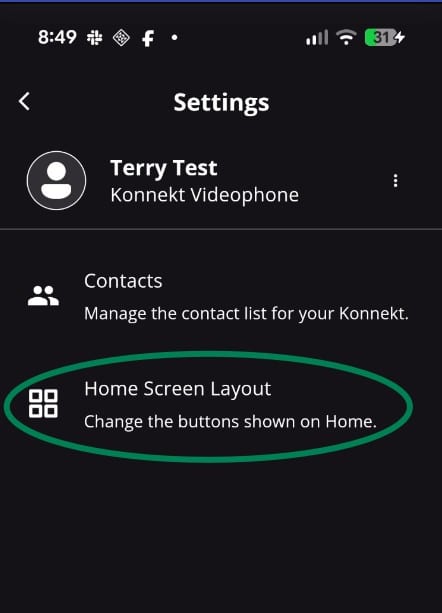
2. Tap “Home Screen Layout”.
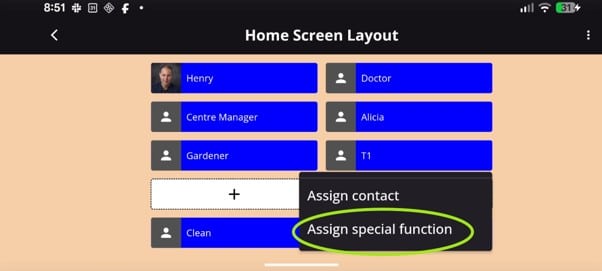
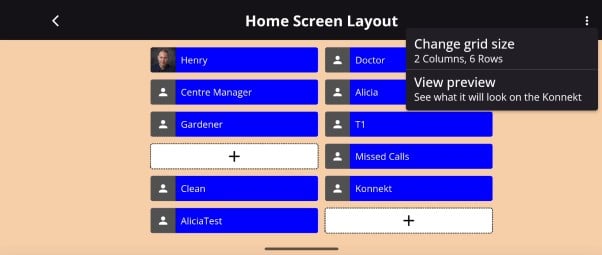
3. You’ll see a screen that looks like your Konnekt device. Think about where you would like to place the Missed Calls button, then tap an empty slot containing a “+” sign. Then, click “Assign special function”.
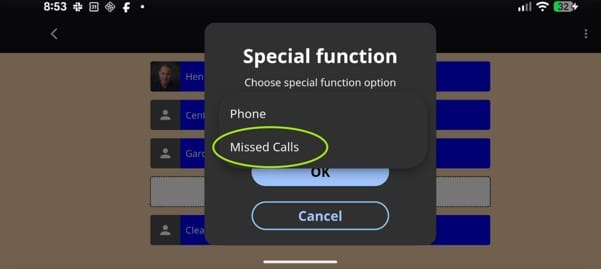
4. Select “Missed Calls” from the list, then tap “OK”. The Missed Calls button will immediately appear on your Konnekt device.
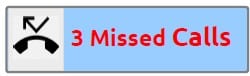
5. The Missed Calls button shows how many missed calls you’ve received, since you last opened the list.
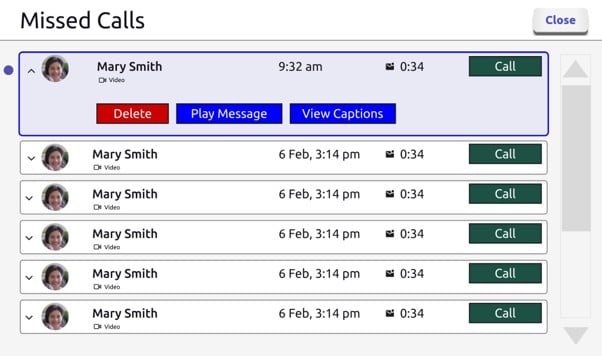
6. Tap the Missed Calls button to open the Missed Calls page. If you have had any missed calls, each missed call will be displayed in a row. Within a row, tap the green “Call” button to call the person back. Alternatively, tap the middle of the row to show options to play or view a message (if one was left).
To see it in action, view this short video.
Frequently asked questions
Q: What if I don’t have a free slot for the Missed Calls button on the Konnekt screen?
A: You can add an additional row or column to the Konnekt layout using the app. From the Home Screen Layout page, tap on the “…” menu in the top right, then select “Change grid size” and add an extra row or column.
Q: How do I see my missed calls?
A: The feature needs to be enabled first. After the Missed Calls feature is enabled on your videophone, a Missed Calls button is shown on the device home screen. Tap this button to show the list of missed calls.
Q: What does the number on the Missed Calls button mean?
A: This shows how many new missed calls you have received since you last opened the list.
Q: Does Missed Calls work with both phone and video calls?
A: Yes! Missed phone calls and video calls are both logged. For phone calls, callers can leave an audio message. For video calls, callers can leave a video message.
Q: Does Missed Calls work with the automatic answering feature?
A: Yes. If a call is auto-answered, our system looks at parameters such as the call duration to work out if it should be reported as a missed call. If the caller hangs up before the device auto-answers, this counts as a missed call.
How to link the CareWindow app to your Konnekt account
1. Open the CareWindow app on your smartphone or tablet.
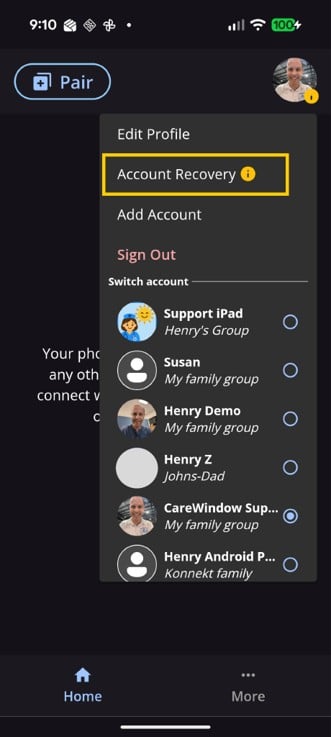
2. Tap your profile icon in the top right of the app, then select “Account Recovery”.
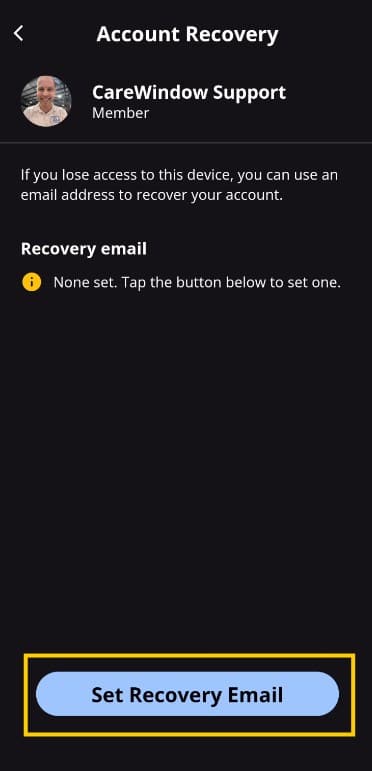
3. Check the recovery email. If it’s different to your email address or says “None set”, tap “Set Recovery Email” at the bottom to set it.
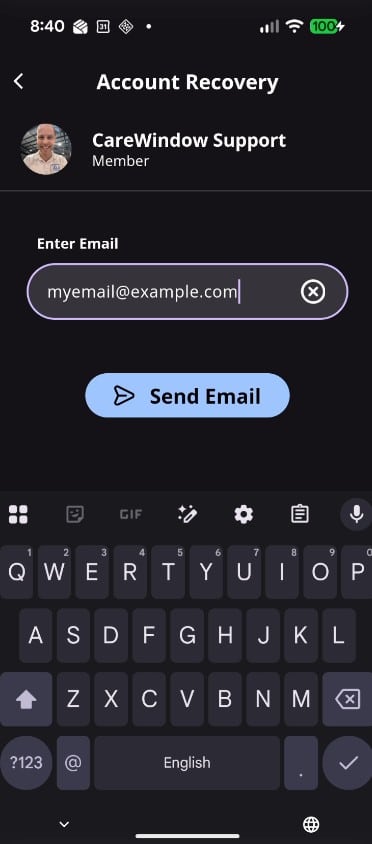
4. In the next screen, enter your email address and tap Send Email.
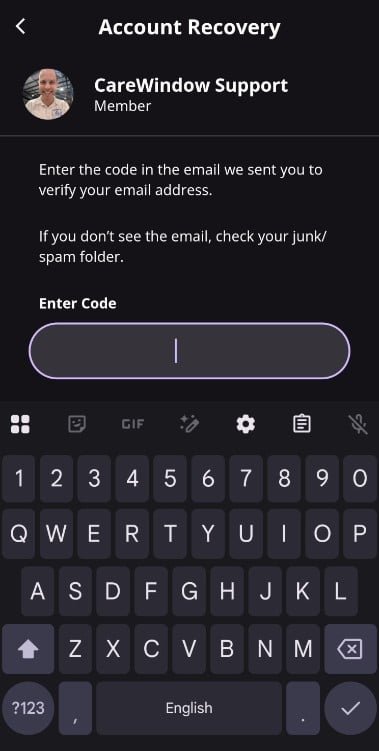
5. When you receive the email, enter the verification code into the CareWindow app.
After entering the code correctly, you should receive a confirmation email saying that your CareWindow app has been linked to your Konnekt account, and the Manage tab should appear at the bottom of the Home screen in the CareWindow app.
The CareWindow app might need to be closed and re-opened in order for the new tab to show up. If this doesn’t work, try restarting the phone/tablet (or force-quit and relaunch the CareWindow app, if you know how). Also check that your recovery email address in the CareWindow app matches your email address.
If you still cannot see it, simply contact Konnekt Support and we’ll help you out.